Sync Metadata from SAP HANA
Keep your SAP HANA metadata up-to-date inside Anansi — without starting from scratch.
What Is SAP HANA Metadata Sync?
Once you've imported your SAP HANA metadata into Anansi for the first time, your database will continue to evolve — new tables get added, columns are renamed or removed, schemas are restructured. Metadata Sync keeps Anansi in step with those changes.
Think of it this way:
Import = First time you bring your HANA database structure into Anansi
Sync = Keeping that structure current as your HANA schemas evolve
When you sync, Anansi reconnects to your SAP HANA instance and updates the existing metadata inside a catalog you've already set up — without creating a new catalog or losing your existing lineage configurations.
Video Walkthrough
Watch the full walkthrough on YouTube: https://youtu.be/i_-xVp74Pcs
Architectural Flow Diagram
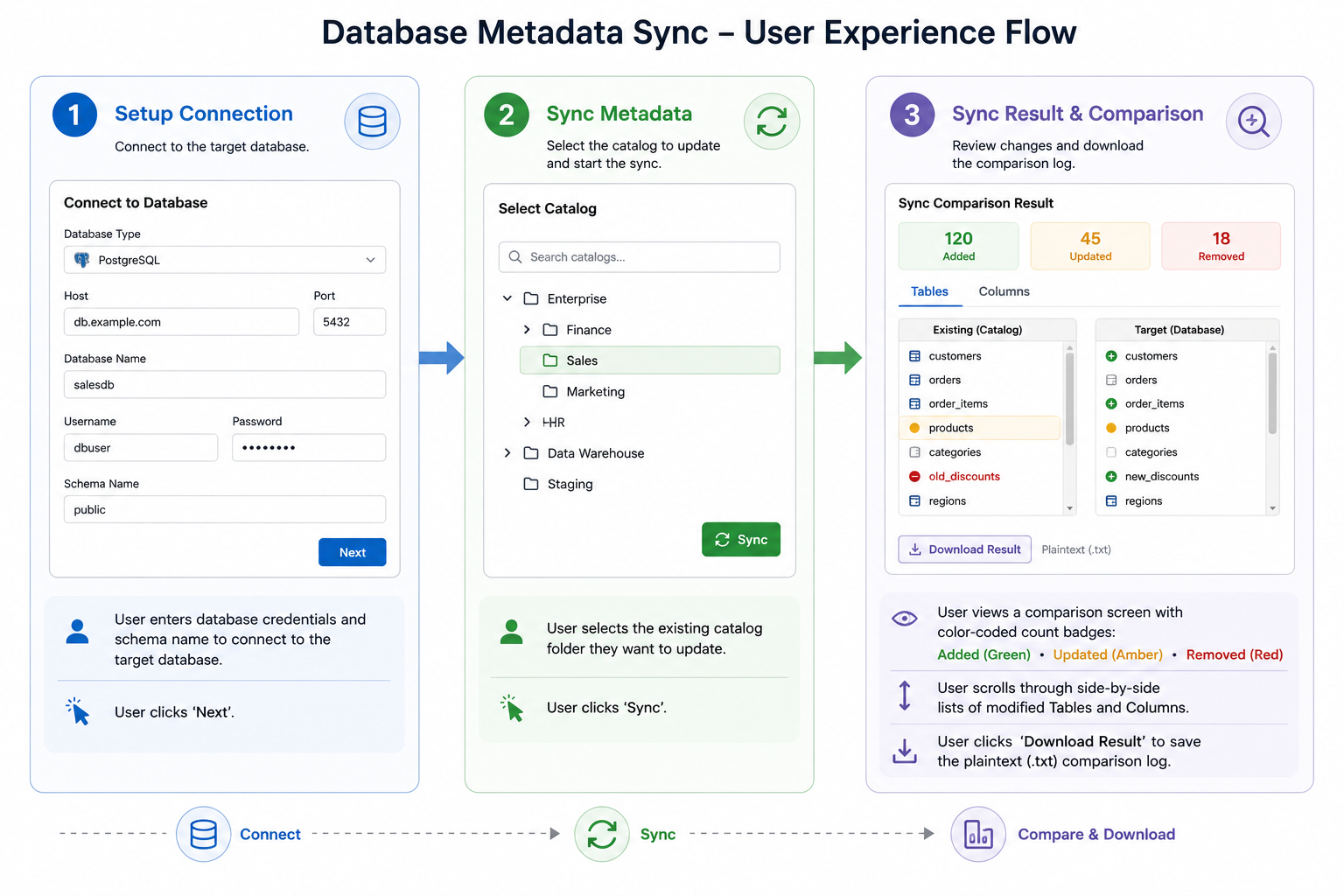
The diagram above shows the architecture of the SAP HANA metadata sync process.
Import vs. Sync: What's the Difference?
| Import | Sync | |
|---|---|---|
| When to use | First-time SAP HANA database onboarding | HANA schema structure has changed since the last import or sync |
| Catalog | Can create a new catalog or use an existing one | Must use an existing catalog |
| Node Names | You define or select node type names | You select from existing node types |
| Existing data | Populates a fresh catalog | Updates data inside an existing catalog |
Getting Started
How to Access the Sync Metadata Page
From the Dashboard, look for the Data Integration card. Click the dropdown button and select "Sync Metadata".
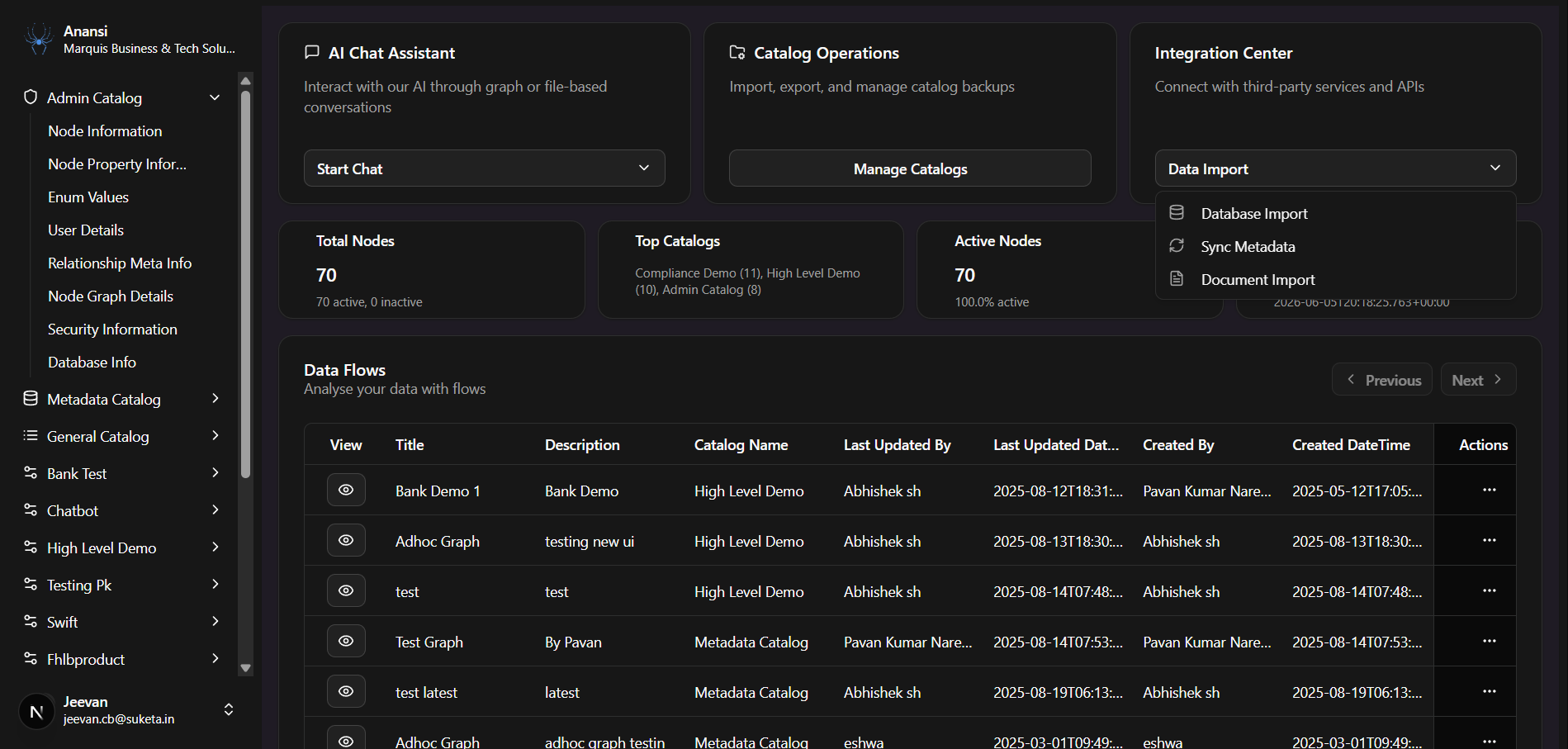
You will be taken to a clean, 3-step wizard that guides you through the process.
The Three-Step Wizard
The SAP HANA sync flow is split into three steps:
| Step | Name | What You Do |
|---|---|---|
| 1 | Setup Connection | Provide your SAP HANA credentials and test the connection. |
| 2 | Sync Metadata | Choose the existing catalog and node types to sync the updated metadata into. |
| 3 | Sync Result | Review a detailed report of all tables, columns, and keys that were inserted, updated, or deleted during the sync. |
A visual step indicator at the top of the page always shows you where you are.
Step 1: Setup Connection
Please refer to the Setup Connection guide to configure your SAP HANA database credentials and verify connectivity.
Step 2: Sync Metadata
Specify which existing catalog in Anansi should be updated with the latest structure from your SAP HANA database.
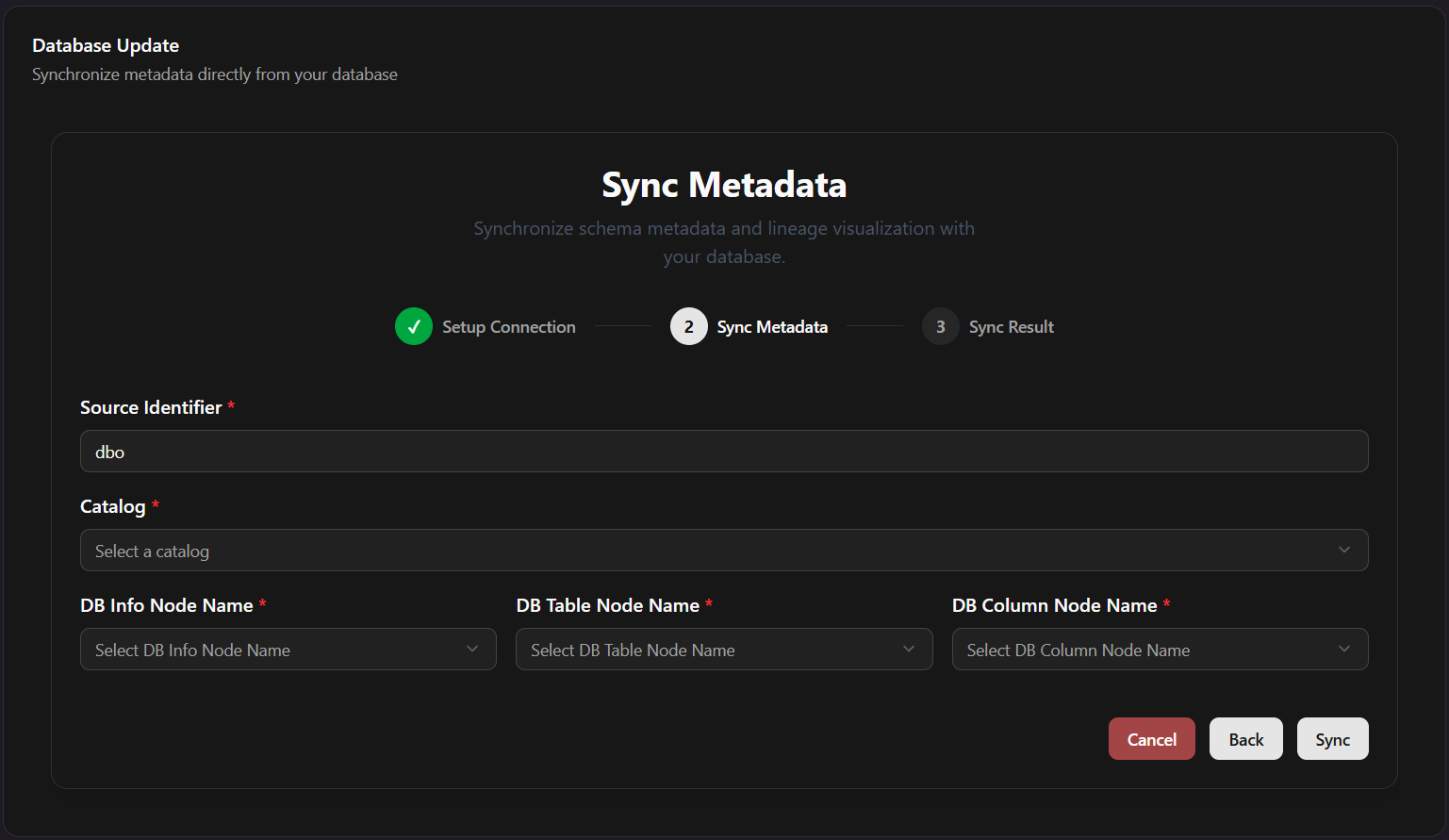
- Source Identifier (Required): Automatically pre-filled from your HANA Schema Name.
- Select a Catalog (Required): Choose the existing catalog you want to update.
- Note: In Sync mode, the option to create a new catalog is hidden — sync only applies to catalogs that already contain previously imported metadata.
- Node Names (Required): Select the matching node types representing your schema, tables, and columns in that catalog.
Click "Sync" to start the sync task. Anansi will connect to your SAP HANA instance, scan for schema changes, and advance you to Step 3.
Step 3: Sync Result
Once the sync task completes, you will automatically be redirected to the Sync Result report page.
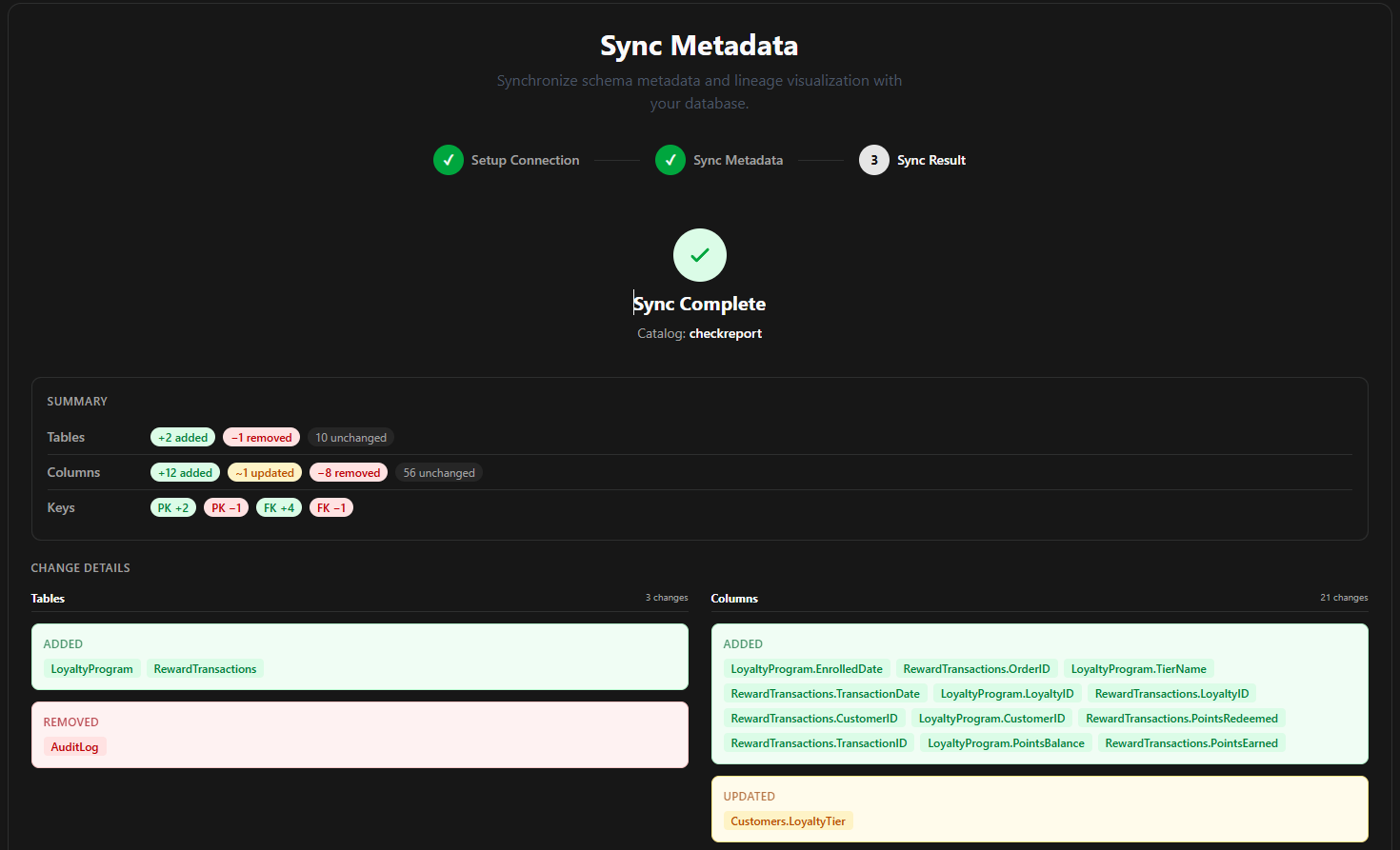
1. Stats Summary
The summary card displays colour-coded badges indicating exactly what has changed in your HANA schema since the last sync:
- Added: Items added to the database since the last sync (e.g.,
+2 added). - Updated: Items modified or renamed since the last sync (e.g.,
~1 updated). - Removed: Items deleted from the database since the last sync (e.g.,
−1 removed). - Unchanged: Items skipped because no changes were detected (e.g.,
14 unchanged). - Keys: Displays primary keys (
PKadded/removed) and foreign keys (FKadded/removed).
2. Side-by-Side Detailed Change Columns
Under Change Details, changes are split into a clean, two-column layout:
- Tables Column: Lists all added, updated, or removed table structures (e.g.,
LOYALTY_PROGRAMunder Added,AUDIT_LOGunder Removed). - Columns Column: Lists all added, updated, or removed column structures (e.g.,
LOYALTY_PROGRAM.LOYALTY_IDunder Added,CUSTOMERS.LOYALTY_TIERunder Updated).
3. Download Plaintext Report (.txt)
Click "Download Result" to save a plaintext report of this sync run.
- File Name: Saved as
sync-report-[CatalogName]-[Timestamp].txt - Content: Includes a timestamped summary header, detailed breakdown of all additions, removals, and modifications.
Click "OK" to return to your main Dashboard.
When Should I Sync?
| Situation | Should You Sync? |
|---|---|
| A new table or view was added to your HANA schema | Yes |
| A column was renamed, added, or deleted | Yes |
| You restructured an existing schema | Yes |
| You want to connect a completely new SAP HANA instance | No — use Import Metadata instead |
Common Issues & Fixes
| Problem | Likely Cause | Fix |
|---|---|---|
| "401 Unauthorized" error | Expired session or token | Log out and log back in to renew your security access token. |
| Catalog dropdown is empty | No catalogs exist yet | You must Import metadata first to create a catalog before you can run a sync. |
| Sync runs but shows 0 changes | No schema changes in HANA | If the HANA schema has not changed since the last import or sync, the report will show zero additions, updates, or removals. This is normal. |
| "Connection refused" | HANA instance not reachable | Verify the host, port, and network access. If behind a firewall, configure an SSH tunnel. |