Setup Connection
This is where you provide your SAP HANA database credentials so Anansi can connect to it.
1. Enter Your SAP HANA Connection Details
Select HanaDB as the database type and fill in the following parameters:
| Parameter | Required | Description |
|---|---|---|
| DB Type | Yes | Select HanaDB from the dropdown. |
| Host | Yes | The hostname or IP address of your SAP HANA server (e.g., hana.mycompany.com). |
| Port | Yes | The port number your HANA instance listens on (1–65535). See port conventions below. |
| User | Yes | Your SAP HANA database username (e.g., SYSTEM). |
| Password | Yes | The password for the database user. |
| Schema Name | Yes | The schema you want to import metadata from (e.g., SALES_DATA). |
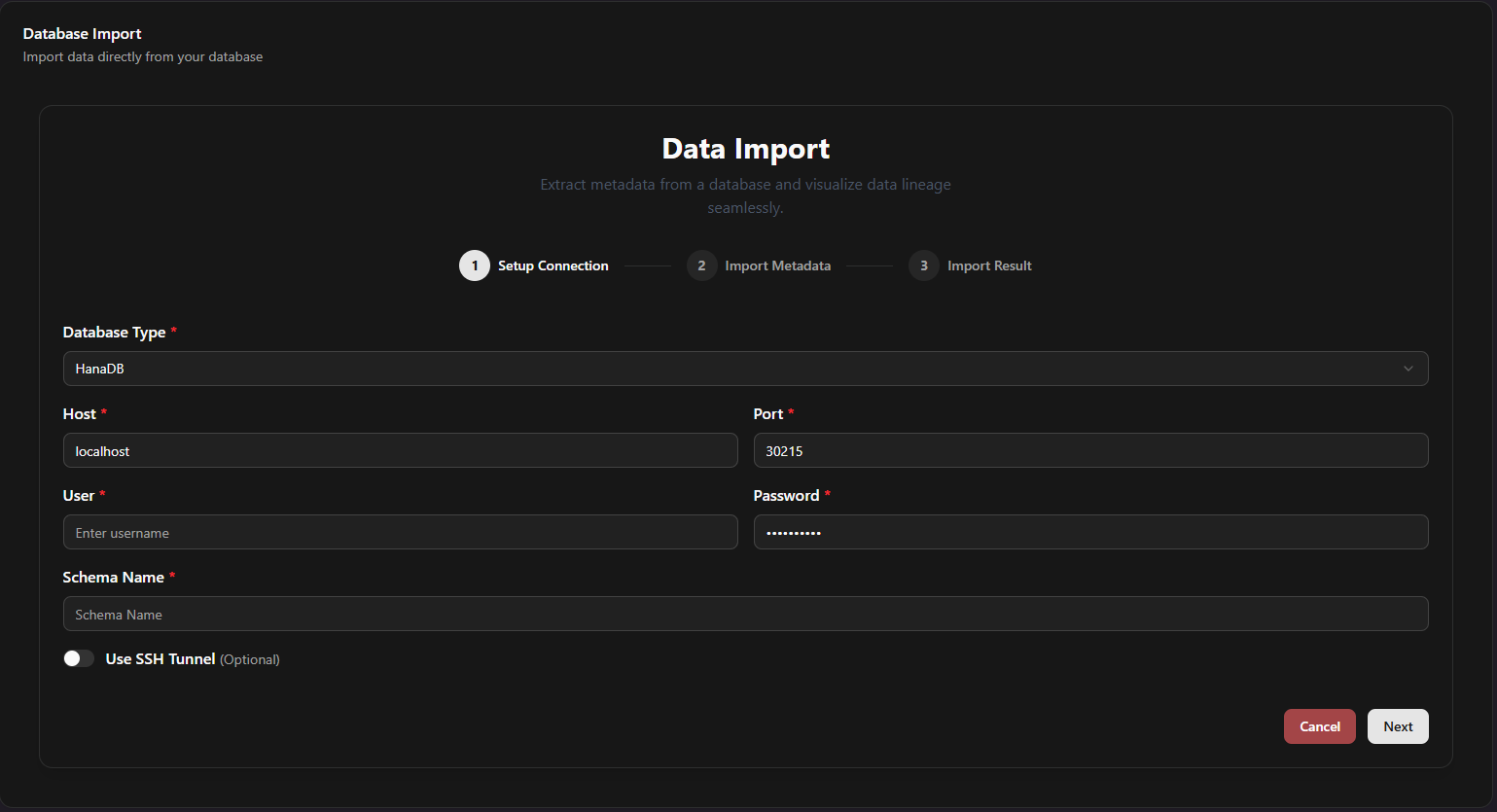
Example Configuration
- Host:
hana.mycompany.com - Port:
30015 - User:
SYSTEM - Password:
•••••••• - Schema Name:
SALES_DATA
SAP HANA Port Conventions
SAP HANA uses port numbers based on your instance number (NN):
| Deployment Type | Port Pattern | Example (Instance 00) |
|---|---|---|
| Tenant Database (MDC) | 3NN15 | 30015 |
| System Database | 3NN13 | 30013 |
| Single Container | 30015 | 30015 |
If you're unsure of your instance number, check with your SAP Basis or HANA administrator.
2. (Optional) Use an SSH Tunnel
If your SAP HANA server is inside a private network or behind a firewall, toggle on "Use SSH Tunnel" to create an encrypted bridge:
| Parameter | Required | Description |
|---|---|---|
| Local Port | Yes | Port on your local machine the tunnel listens on (1–65535). |
| Remote Host | Yes | Internal address of the HANA server as seen from the SSH host. |
| Remote Port | Yes | The HANA port on the internal network (1–65535). |
| SSH Host | Yes | The jump server address you connect through (e.g., ssh.mycompany.com). |
This is particularly common in enterprise SAP environments where HANA instances are deployed in isolated VPCs or on-premises data centres.
3. Click "Next" — Connection Is Tested
Click "Next". Anansi will validate all fields, verify that port numbers are within the valid range, and test the live connection to your SAP HANA database.
- Success: A green "Connection Established" toast notification appears, and you advance to Step 2 of the wizard.
- Failure: A red error toast appears detailing what went wrong (e.g., incorrect credentials, unreachable host, invalid port).
Troubleshooting Connection Issues
| Problem | Likely Cause | Fix |
|---|---|---|
| "Connection refused" | Wrong port or HANA instance not running | Verify the instance number and corresponding port (3NN15 for tenant DB). Confirm the HANA service is started. |
| "Authentication failed" | Incorrect username or password | Double-check your HANA user credentials. Ensure the user account is not locked. |
| "Host not found" | Incorrect hostname or DNS issue | Verify the hostname resolves correctly. Try using the IP address instead. |
| Timeout errors | Network or firewall blocking access | Ensure your network allows traffic on the HANA port. Consider using an SSH tunnel. |