Setup Connection
This is where you provide your database credentials so Anansi can connect to it.
1. Choose Your Database Type & Enter Connection Details
Pick your database type from the tabs below to view connection parameters and screenshots:
- SQL Server
- PostgreSQL
- Oracle
- SAP HANA (HanaDB)
Parameters to Enter:
- DB Type: Select SQL Server as the database type.
- Connection String (Required): Enter the ODBC connection string of your SQL Server Database.
- Schema Name (Required): Specify the schema name to be imported from SQL Server Database.
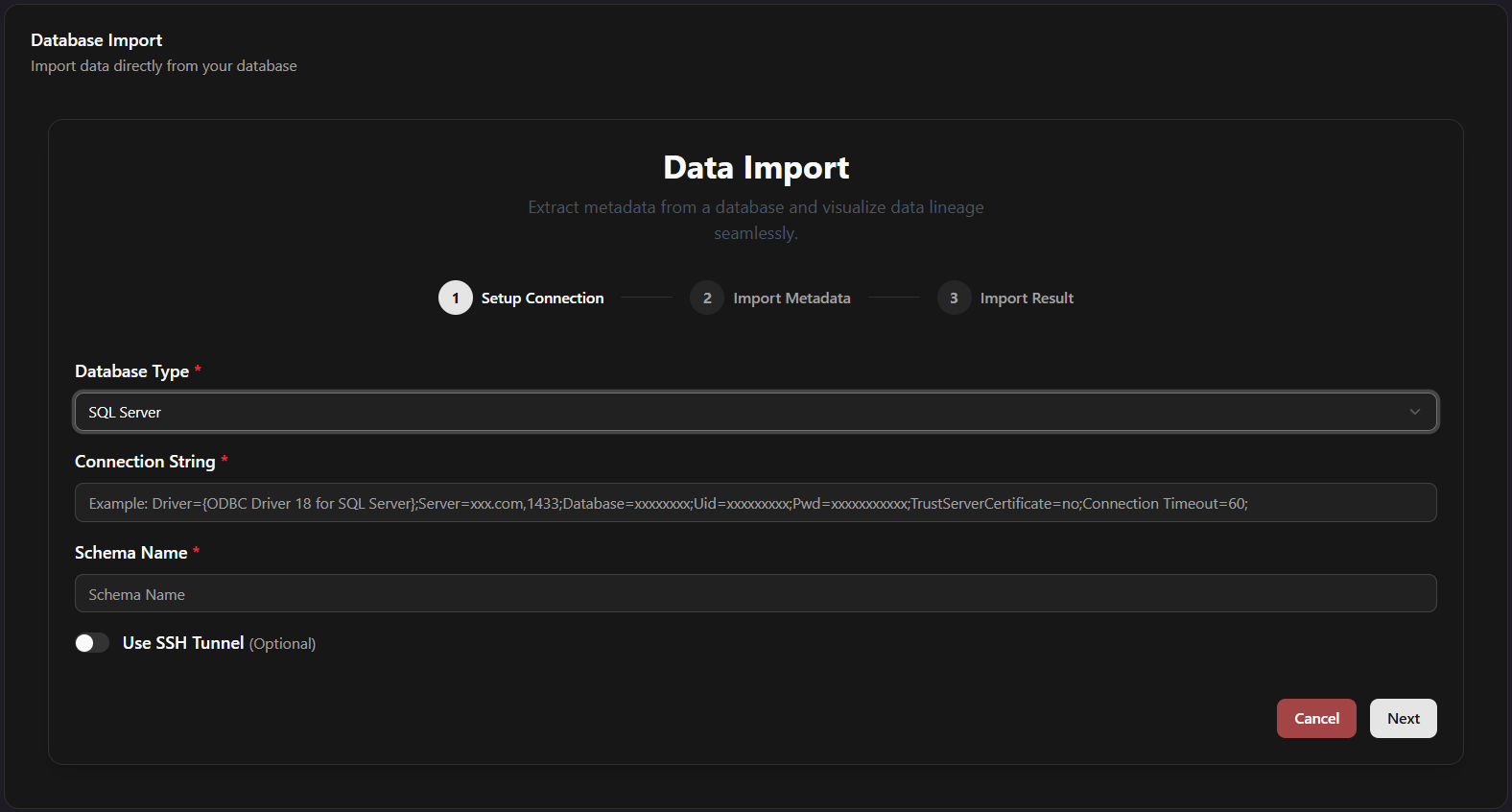
Driver={ODBC Driver 18 for SQL Server};Server=tcp:sqlserver.mycompany.com,1433;Database=SalesDB;Uid=admin_user;Pwd=xxx;Encrypt=yes;TrustServerCertificate=no;Connection Timeout=60;
Replace the Server address, Database name, Uid (username), and Pwd (password) with your actual database details.
Parameters to Enter:
- DB Type: Select PostgreSQL as the database type.
- Connection String (Required): Enter the PostGreSQL connection string of your database.
- Schema Name (Required): Specify the schema name to be imported from PostGreSQL Database.
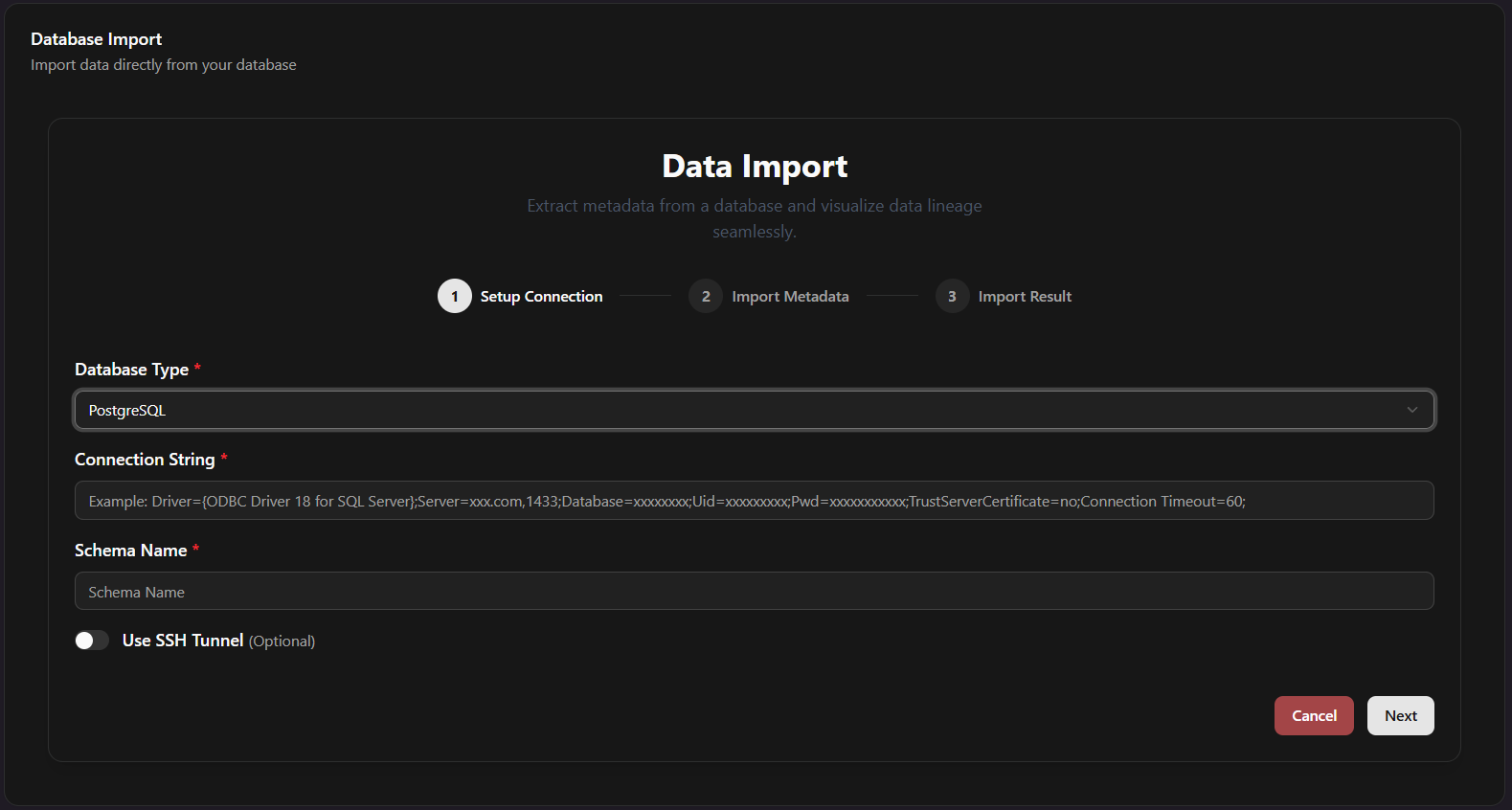
DRIVER=PostgreSQL Unicode;SERVER=postgres.mycompany.com;DATABASE=analytics_db;UID=postgres_admin;PWD=xxx;sslmode=require;
Replace the Server address, Database name, Uid (username), and Pwd (password) with your actual database details.
Parameters to Enter:
- DB Type: Select Oracle as the database type.
- Connection String (Required): Enter the Oracle connection string of your database.
- Schema Name (Required): Specify the schema name to be imported from Oracle Database.
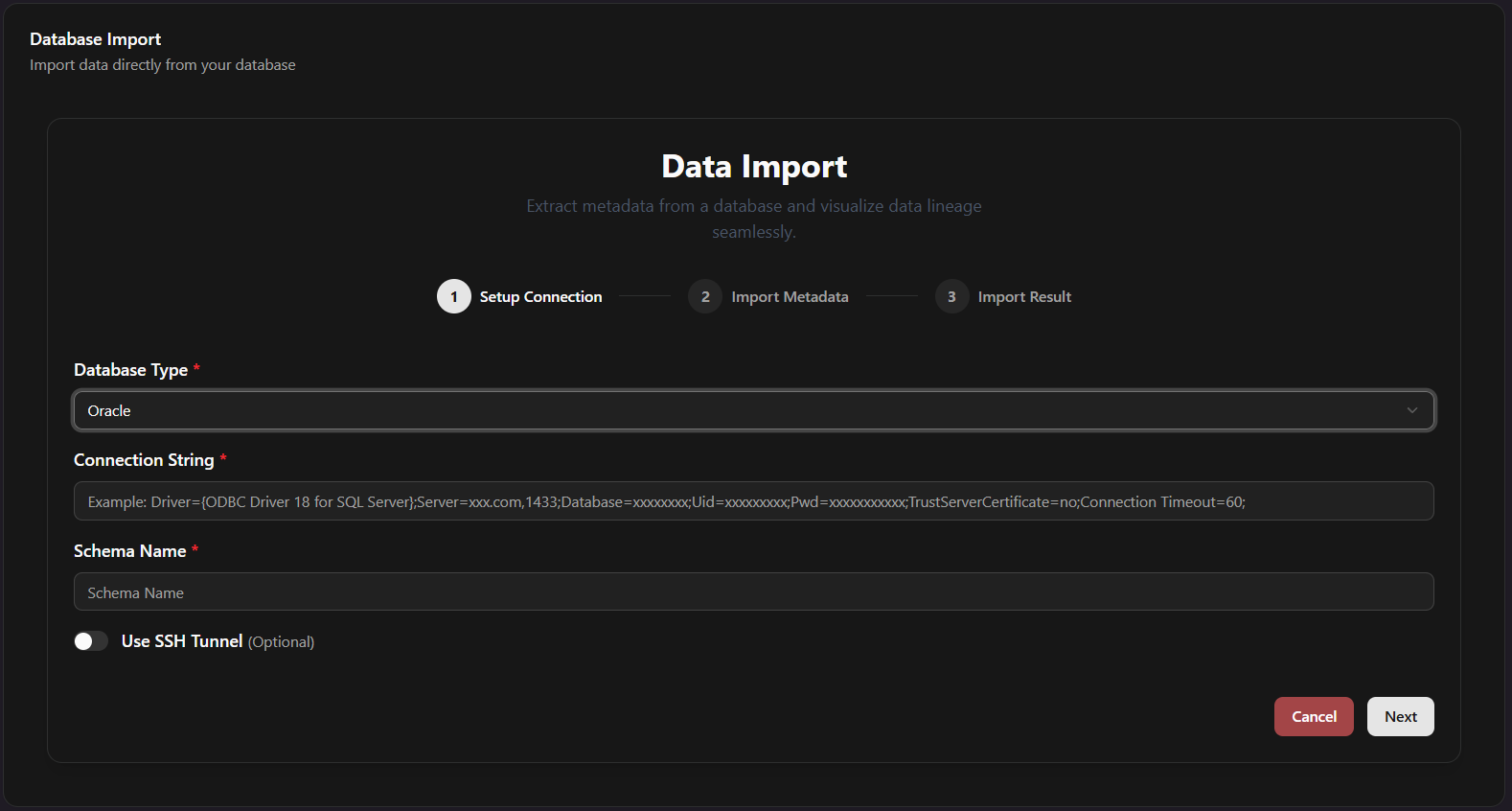
DRIVER={Oracle Driver};DBQ=oracle.mycompany.com/ORCL;UID=sysadmin;PWD=xxx;
Replace the DBQ (host/service), UID (username), and PWD (password) with your Oracle database details.
Parameters to Enter:
- DB Type: Select HanaDB as the database type.
- Host (Required): Enter the hostname or IP address of your SAP HANA Database server.
- Port (Required): Enter the port number (1-65535, e.g., 30015 or 30215).
- User & Password (Required): Enter your database credentials.
- Schema Name (Required): Specify the schema name to be imported from your SAP HANA database.
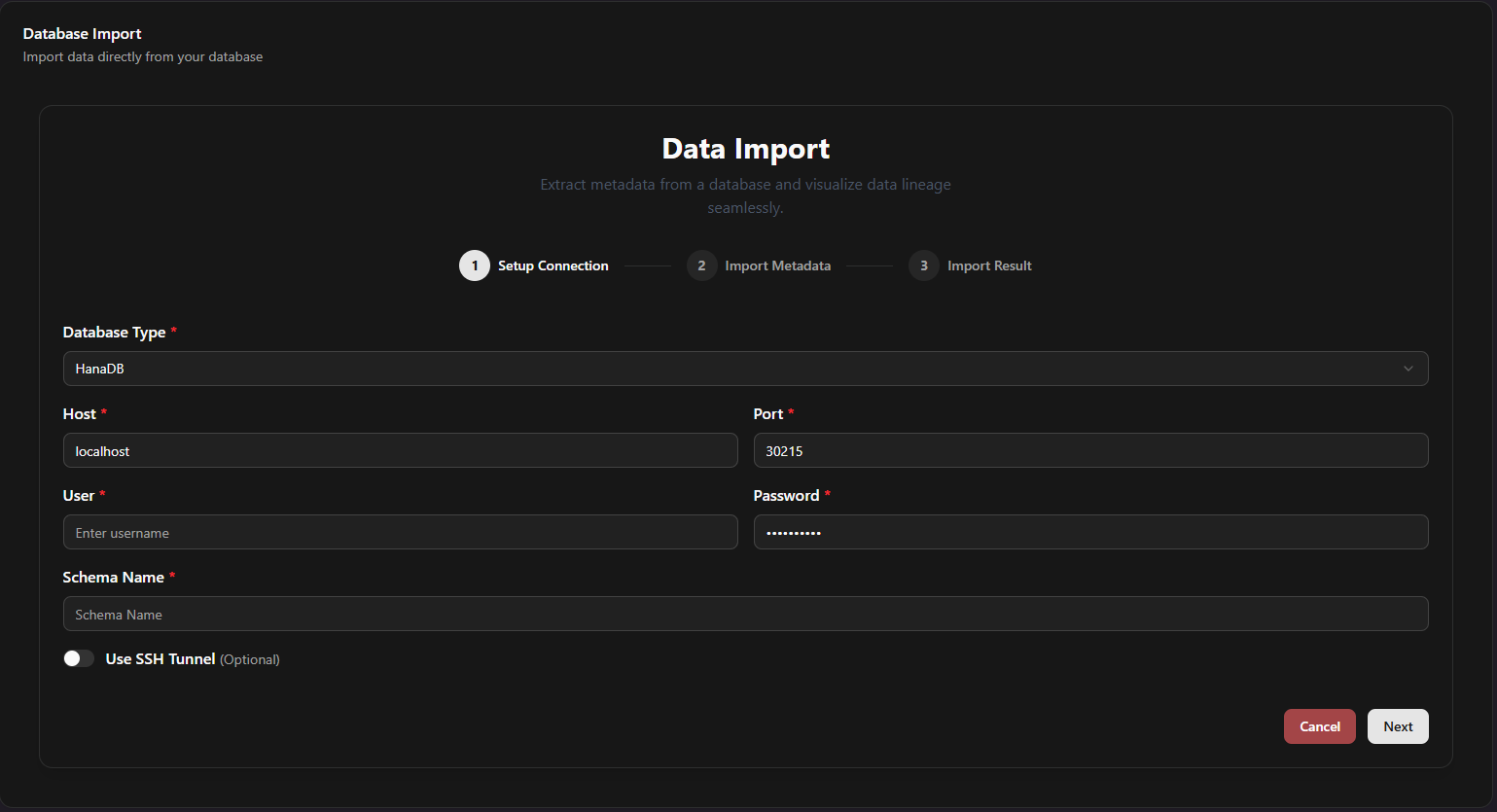
- Host:
hana.mycompany.com - Port:
30015 - User:
SYSTEM - Password:
xxx - Schema Name:
SALES_DATA
SAP HANA default port depends on your instance number (NN):
- Tenant database (MDC): 3NN15 (e.g., 30015 for instance 00)
- System database: 3NN13
- Single Container: 30015
2. (Optional) Use an SSH Tunnel
If your database is inside a private network or behind a firewall, toggle on "Use SSH Tunnel" to configure an encrypted bridge:
- Local Port (Required): Port on your local machine the tunnel listens on (1–65535).
- Remote Host (Required): Internal address of the database server.
- Remote Port (Required): Database internal port (1–65535).
- SSH Host (Required): The server address you connect through (e.g.
ssh.mycompany.com).
3. Click "Next" — Connection Is Tested
Click "Next". Anansi validates the fields, verifies that port numbers are within valid ranges, and tests the live connection.
- Success: A green "Connection Established" toast appears, and you advance to Step 2.
- Failure: A red error toast appears detailing what failed.